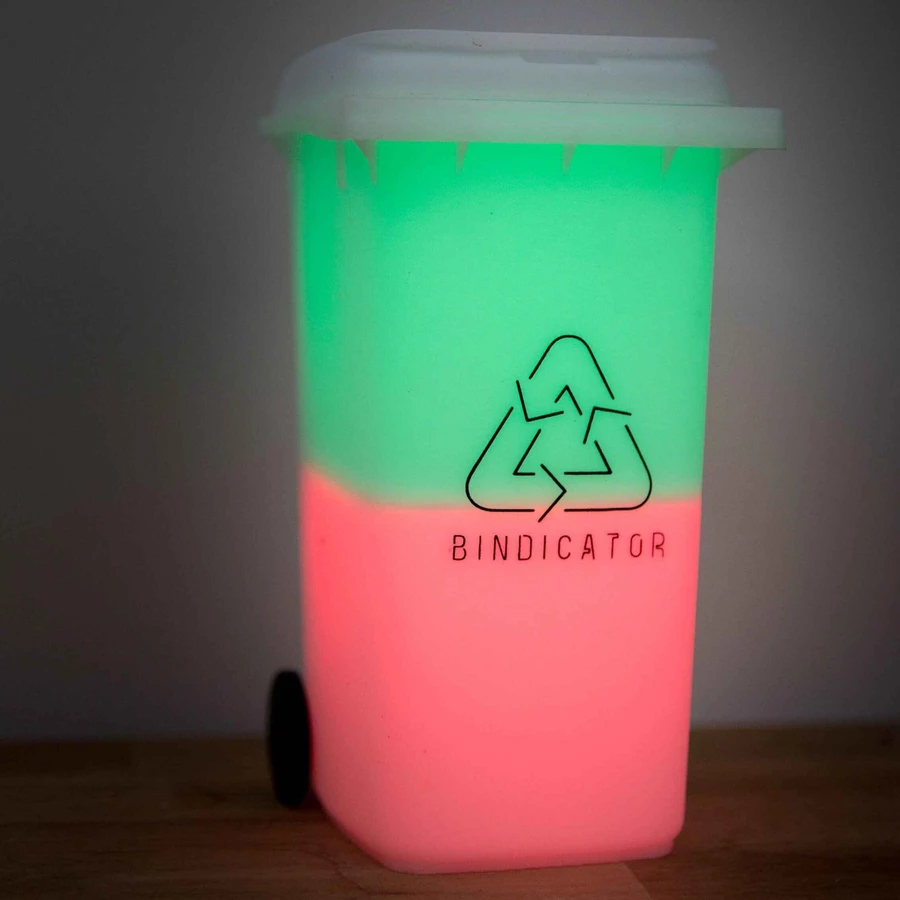
If you run Pi-hole, keep smart devices on their own VLAN, or have a router full of custom rules, this guide is for you. Start with the Quick Start Guide for pairing and schedules, then use the checks below if your Bindicator gets stuck.
These details follow the app and firmware code reviewed in September 2026. Older releases can show different setup messages and recovery behaviour. Install available app and firmware updates when your connection allows it.
For a lamp that freezes or restarts during pairing, start with the simple recovery steps: devices purchased after September 2026 or older devices. You do not need to know its firmware version to choose a guide.
Find the connection stage that failed
The app sends your Wi-Fi details to the lamp over Bluetooth. The lamp then joins Wi-Fi and connects to Bindicator's cloud service. The app also connects to that service to confirm setup and send schedule changes. Time and timezone lookups are separate network requests.
- If the app cannot find the lamp, start with Bluetooth: keep your phone nearby, enable Bluetooth and grant the app its Bluetooth or Nearby devices permission. On Android, follow any prompt for location services needed for scanning. A Pi-hole exception will not fix Bluetooth discovery.
- If the top light keeps flashing green during startup, check the Wi-Fi name, password, signal and the router's DHCP leases. A solid green top light means the lamp has reached the Wi-Fi connection stage.
- If the bottom light keeps flashing green, check DNS and the cloud messaging connection on TCP port 8883. Both the lamp and the phone need access.
- If the lights reach solid green but setup still stalls, or the lamp restarts before reminders work, check time sync as well. A cloud connection alone does not confirm that the clock and timezone are ready.
2.4 GHz, mesh and hidden networks
Bindicator uses 2.4 GHz Wi-Fi. Its ESP32 radio cannot join a 5 GHz or 6 GHz-only network. The hardware's band support is documented in Espressif's ESP32 overview.
A shared network name for 2.4 GHz and 5 GHz is fine in principle: the lamp joins the 2.4 GHz side. Your phone can stay on 5 GHz because it hands over the credentials using Bluetooth. You do not need to split your network names just to make them match.
If a mesh system refuses the connection, try its IoT onboarding mode or a separate 2.4 GHz SSID near one access point. Use WPA2-Personal with AES as a compatibility test if a WPA3-only network will not accept the lamp. The setup flow accepts a network name and password; it has no configuration for enterprise Wi-Fi usernames, certificates or a browser sign-in portal.
For a hidden network, use the app's manual network-name entry and enter the exact SSID, including capitalisation and spaces. If that option is missing in your app version, update the app or temporarily broadcast the SSID. The network list comes from the lamp's scan, so a network visible on your phone may still be out of the lamp's range.
For intermittent dropouts, first test the lamp beside an access point. Check router logs for rejected associations, minimum signal-strength rules or forced roaming. Change one setting on the IoT SSID at a time so you can tell which change helped.
Wi-Fi credential limits on older devices
On firmware V10/V21, the startup code reads the SSID and password into buffers that hold 31 bytes of text each. Longer credentials can work during initial pairing, which uses a different connection path, then fail after a reboot. The older setup format also splits the SSID and password at commas.
For recovery, try a separate 2.4 GHz SSID with a name of at most 31 ASCII characters and a unique password of 12 to 31 ASCII characters. Use no commas in either field. Ordinary letters and digits each use one byte; non-ASCII characters can use more. A second phone's hotspot can also work if it supports these settings. This lets you test without changing your main network's password.
Once the lamp connects, install the firmware update offered by the app, then pair it back to your home network before switching off the temporary network. The older-device recovery guide covers the update steps.
DNS and firewall reference
The lamp uses DHCP for its IPv4 address and network settings. Check that its subnet has a working DHCP server, gateway and DNS resolver. If you want a stable address for firewall rules or Home Assistant, make a DHCP reservation in your router.
The table lists destination ports. Allow the initiating connection and its reply traffic. Cloud services need outbound access; there is no need to forward internet-facing ports to the lamp.
| Purpose and destination | Traffic |
|---|---|
| DNS to the resolver supplied by your network | Lamp and phone to their resolver, UDP/TCP 53 for ordinary DNS |
Cloud messaging: a3ec7rfpqq542-ats.iot.ap-southeast-2.amazonaws.com | Lamp and app outbound, TCP 8883 (MQTT over TLS) |
Clock sync: pool.ntp.org | Lamp outbound, UDP 123 (NTP) |
Timezone lookup: timezoned.rop.nl | Lamp outbound, UDP 2342 |
App API, including council lookup: wwwib031d8.execute-api.ap-southeast-2.amazonaws.com | App outbound, TCP 443 (HTTPS) |
Firmware downloads: the host in the update URL supplied to the app. The firmware source gives bindupdate.s3.ap-southeast-2.amazonaws.com as an example. | Lamp outbound, TCP 443 for HTTPS. Older firmware recovery can also use TCP 80 for HTTP. |
| Home Assistant local API: the lamp's LAN IP address | Home Assistant to lamp, TCP 80, including a persistent event stream |
Home Assistant discovery: _bindicator._tcp.local. | Local mDNS, UDP 5353 |
Use hostnames where your firewall supports them, and check its handling of changing DNS answers. Avoid pinning cloud services or the NTP pool to a single IP address. The update URL comes from cloud configuration, so verify the actual download host in your logs when troubleshooting an update.
Configure Pi-hole or another DNS filter
Pi-hole can stay enabled. Start by checking whether it actually blocked a required hostname.
- Find the lamp's IP address in your router's client or DHCP list. Open Pi-hole's Query Log, filter for that client and retry the failed setup step. Check the phone's queries too. If your router forwards DNS on behalf of clients, the queries may appear under the router's address.
- Compare blocked queries with the destinations above. Add an exact allow entry for a required hostname that your filter blocked. Enter the hostname alone, without
https://, a port or a path. Avoid a blanket exception foramazonaws.com. - If you use Pi-hole groups, assign the exception to the group that contains the affected client. An exception for the lamp will not help the phone if it belongs to a different group. See Pi-hole's group management documentation and allowlist instructions.
- Retry after the DNS cache has expired, or reconnect the affected client to trigger a fresh lookup. Confirm that Pi-hole now allows the request.
For AdGuard Home, NextDNS or a router's DNS filter, use the same diagnosis: inspect the affected client's queries, allow the specific blocked destination and repeat the test. If no matching queries appear, check which resolver the client actually uses. A phone's VPN or private DNS setting may send its queries elsewhere.
A successful DNS answer only resolves a name. It does not open TCP 8883 or UDP 2342 in your firewall. If the domains resolve but the lamp still stalls, move to the firewall logs rather than adding broader DNS exceptions.
Guest networks, VLANs and Home Assistant
You can put the lamp on an IoT VLAN if that network provides the DHCP, DNS and outbound connections above. The phone does not need direct LAN access to the lamp for ordinary app control: Bluetooth handles pairing and the app uses the cloud afterwards. An isolated guest network can therefore work for the app, provided it permits those outbound connections and does not require a web login.
Home Assistant needs a separate local path. Allow your Home Assistant host to reach the lamp on TCP 80, with return traffic and long-lived connections for live events. The integration uses the lamp's HTTP API; you do not need to install a local MQTT broker.
For automatic discovery across VLANs, configure your router's mDNS reflector or gateway between the relevant networks. Guest isolation or multicast filtering can prevent discovery. You can instead add Bindicator manually by its IP address in Home Assistant, but that only bypasses discovery: the TCP 80 path must still work. Home Assistant's Zeroconf documentation explains its discovery browser and network-interface selection.
The lamp's local API trusts the LAN and has no login. Restrict access to trusted devices such as your Home Assistant host, and keep it off the public internet. Follow our Home Assistant setup post for installation and firmware requirements.
Time sync and firmware updates
If you block outbound NTP because you run your own time server, check that the lamp still has a working NTP path. Its firmware requests pool.ntp.org; the app does not offer a custom NTP-server setting. A network-level redirect must deliver valid NTP replies. Allowing UDP 123 alone does not cover the separate timezone lookup on UDP 2342, described in the ezTime timezone service documentation.
The reviewed firmware caches timezone rules, but it still needs clock sync after a restart. A fresh setup may also need its first successful timezone lookup. If reminders are an hour out, check the selected timezone as well as those network paths. Repeated factory resets will not fix blocked time services.
If schedule changes work but a firmware update fails, inspect the lamp's download traffic. The update command arrives over MQTT, then the lamp downloads the image separately. The app includes an HTTP retry for older firmware, so a TCP 443-only rule may not cover that recovery path. Allow only the download host and port needed for the update, and keep the lamp powered while it installs.
Compare networks and collect diagnostics
If the app stalls while the lamp appears connected, try the phone on mobile data with its VPN or DNS filtering temporarily paused. Keep Bluetooth on for pairing. If that works, investigate the phone's usual network path; it does not prove that the lamp's own connection is healthy.
To test the lamp independently, try a simple 2.4 GHz network with internet access. A second phone's hotspot can work if it supports 2.4 GHz. Keep your setup phone nearby and pair the lamp to the test network. If it works there, compare your usual network's DNS, authentication and firewall rules, then pair the lamp back to your home SSID.
If you still need help, send us the setup details: phone OS, app and firmware versions, router model, whether you use a mesh or VLAN, the last light pattern you saw and any relevant blocked hostname or port. Include whether the test network worked. Redact Wi-Fi passwords and unrelated client details from logs.