Quick Start
Guide.
You'll be up and running in about five minutes. Start by downloading the app, then follow the steps below.
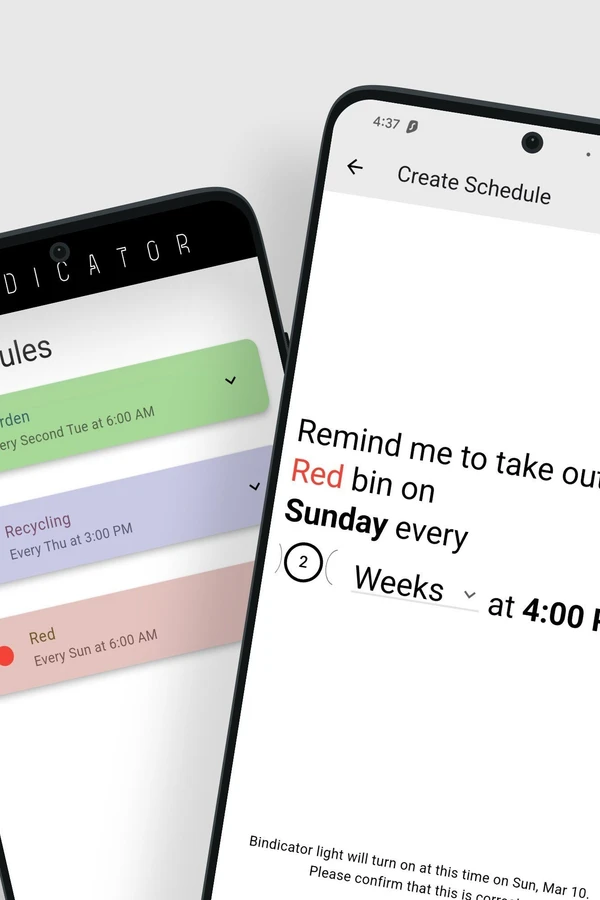
Five steps to bin bliss.
Plug in your Bindicator
Plug your Bindicator into a USB port somewhere you'll see it every morning as you leave: a kitchen bench, hallway shelf, or beside the front door works perfectly.
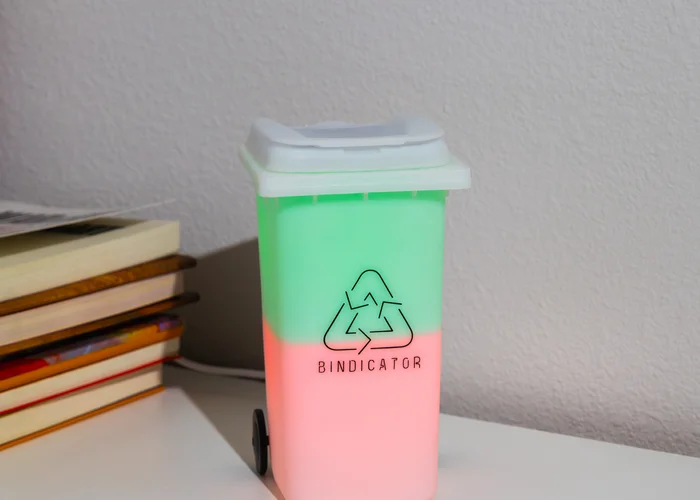
Connect to Wi-Fi
Using the app, follow the steps to connect your Bindicator to your home Wi-Fi network. This lets the device automatically adjust for daylight savings time and keep itself in sync.
Add Your Schedules
In the app, tap the '+' button to add a schedule. Choose the colour, day, and frequency for each bin. If you're not sure when your collection day is, check your council website. You can also try our new feature which can download your schedules directly from your council website. Be sure to check this for accuracy.
Leave your Bindicator Plugged In
The hard work is done. You've set it, now forget it.
Bin Night
Your Bindicator lights up the evening before collection day. To switch off the reminder, simply touch the QR code under the lid.
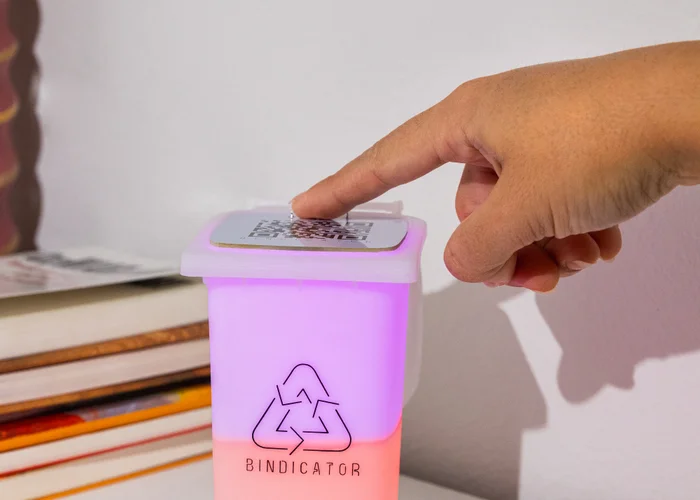
Check What's Next
Not sure which bin is next? Touch the QR code at any time and your Bindicator will light up with the upcoming scheduled bin for 10 seconds, then switch off again.
Ready to get started?
Download the Bindicator app for free. Available on iOS and Android.
Frequently Asked Questions
Does it need to be plugged in all the time?
Does it need WiFi?
What if I have more than 2 bins on the same day?
Can it show Black/Brown/Grey bins?
How do I turn off the light once I've taken out the bins?
How do I check which bins are next?
Will this work in the UK?
Security & updates
Your Bindicator receives security updates automatically over Wi-Fi for a minimum of 3 years from your purchase date, so you don't need to do anything to receive them. Found a security issue? Email [email protected].
Full details: our security policy and update commitment.
Still need help?
Device freezing or restarting during setup? For purchases after September 2026, follow the newer-device recovery guide. For earlier purchases, see help for older devices.
Using Pi-hole, mesh Wi-Fi or a separate IoT network? Read the advanced setup guide for DNS, firewall and connection troubleshooting.
Need to erase the lamp's saved setup? Follow the factory reset guide, starting with updating your lamp.
Send us a message and we'll help out however we can.