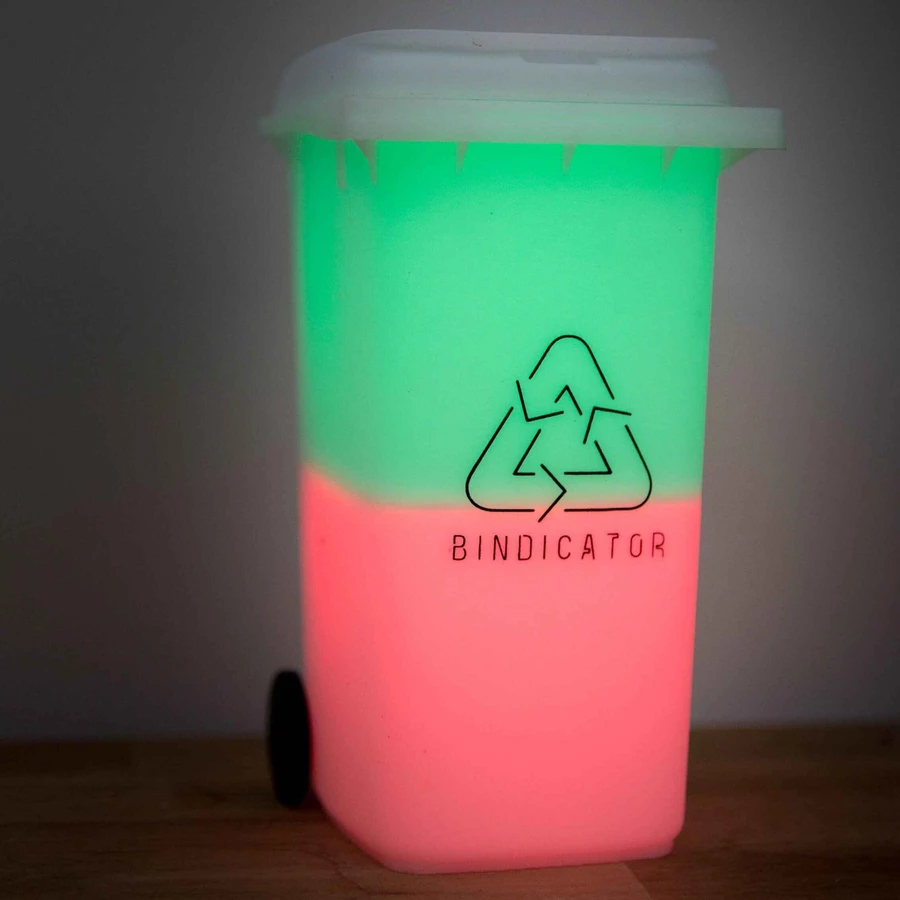
A factory reset clears your Bindicator's saved Wi-Fi network and timezone so you can set it up again. Update the lamp before you reset it. Older device software does not support the reset steps below.
Update first
- Install any available update for the Bindicator app from your phone's app store.
- Open the app and wait until your lamp shows as connected.
- Accept the lamp's update prompt, or open the Connection screen and start the available update. Updating the phone app alone does not update the lamp.
- Keep the lamp plugged in and the app open until the update finishes. The lamp may restart. Wait for it to reconnect, then check the Connection screen to confirm the update finished and is no longer offered.
If the app already shows the lamp as up to date, continue below. You do not need to find or choose a software version yourself.
If the lamp will not connect or its update fails, get that working before attempting this reset. Start with the recovery guide for devices purchased after September 2026 or older devices. If you still cannot connect or update, contact us for help.
Before you reset
Have your Wi-Fi password ready. The reset forgets the lamp's saved network and timezone. Your saved bin schedules remain in the app and return after you complete setup again. The reset does not undo the software update you just installed.
If you only need to restart a stuck lamp, unplug it for 10 seconds and plug it back in. That keeps its saved setup. Do not unplug it while an update is in progress.
Factory reset the lamp
- Exit any setup attempt in the app. Keep the lamp plugged in and leave the QR-code touchpad under the lid untouched while the startup lights settle.
- If both lights are already flashing blue, go to the next step. Otherwise, hold the QR-code pad for about 10 seconds until both lights flash blue, then release it.
- While both lights are flashing blue, tap the pad eight times within 10 seconds. Lift your finger between taps.
- Both lights turn red briefly as the lamp clears its saved setup. Leave it plugged in. It then restarts with both lights flashing blue.
Flashing blue means the lamp is ready to set up again. Solid blue means a phone has connected to it. If the lights are solid blue before you begin the reset, exit setup in the app, unplug the lamp for 10 seconds, then start the steps above again.
Set it up again
Open the Bindicator app and follow setup to choose your timezone and Wi-Fi network again. Keep the phone close to the lamp and leave the pad untouched while pairing. When the app confirms the lamp is connected, check your bin schedules. The Quick Start Guide walks through setup.
If the reset does not work
If the lights keep flashing red, never return to flashing blue, or the lamp does not respond, send us a message. Tell us whether the update finished and what the lights did. A short video can help. You do not need to know the software version or send your Wi-Fi password.
For Pi-hole, mesh Wi-Fi or other custom network settings, see the advanced setup guide. A factory reset does not change your router's settings.